Master AI: How to Use ChatGPT Voice Mode Today
Table of Contents
Introduction
Artificial Intelligence is no longer just a text-based tool confined to a keyboard and screen. With rapid advancements from OpenAI, we can now interact with AI using natural speech, transforming our smartphones and computers into powerful, conversational companions. If you are wondering how to use ChatGPT voice mode, you are in the right place. This comprehensive guide will walk you through everything you need to know about activating, utilizing, and mastering this incredible feature.
Whether you want to practice a new language, prepare for an upcoming job interview, or simply brainstorm ideas while walking your dog, ChatGPT’s voice capabilities offer a hands-free, dynamic way to interact with AI. In this article, we will explore the differences between standard and advanced voice modes, provide a step-by-step setup guide, and share practical use cases to help you get the most out of your AI assistant.
What is ChatGPT Voice Mode?

Before diving into the exact steps of how to use ChatGPT voice mode, it is important to understand what the feature actually is. Launched initially for mobile users, ChatGPT Voice Mode allows you to speak to the ChatGPT application and hear it respond in a highly realistic, human-like voice. Powered by a sophisticated text-to-speech (TTS) model and OpenAI’s robust language processing algorithms, it creates an illusion of a real-time conversation with a remarkably knowledgeable human.
The Technology Behind the Voice
The architecture powering this feature is a marvel of modern AI. When you speak into your device, your voice is instantly transcribed into text using OpenAI’s Whisper speech recognition system. This text is then fed into the underlying LLM (Large Language Model), such as GPT-4 or GPT-4o. The AI generates a text response, which is then rapidly converted back into spoken audio using a custom TTS engine. The entire process happens in milliseconds, resulting in a fluid conversation with minimal latency.
The Evolution to GPT-4o
Recently, OpenAI introduced GPT-4o (the “o” stands for omni), which significantly upgraded the voice experience. Unlike the previous pipeline that converted audio to text, processed the text, and converted it back to audio, GPT-4o processes audio natively. This means the AI can detect emotion, tone of voice, background noises, and even allow you to interrupt it mid-sentence. This leap in technology has made learning how to use ChatGPT voice mode an essential skill for modern AI enthusiasts.
How to Use ChatGPT Voice Mode: Step-by-Step
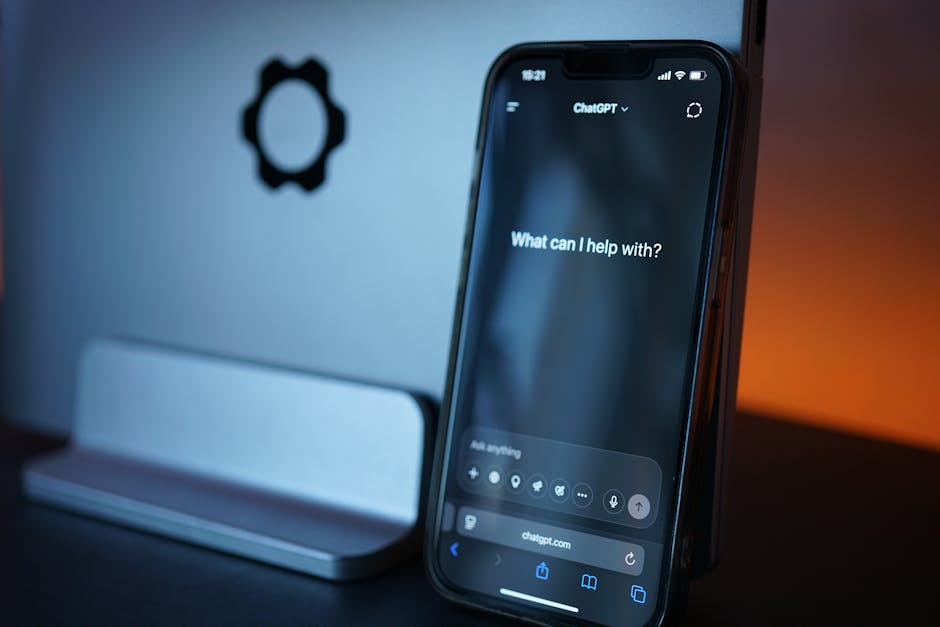
Getting started with voice conversations is incredibly straightforward. While the feature was initially restricted to mobile platforms (iOS and Android), it has steadily been integrated into broader ecosystems. Here is the definitive guide on how to use ChatGPT voice mode across your devices.
Step 1: Download and Install the App
To use the voice feature reliably, you need the official ChatGPT application. Open the Apple App Store (for iOS devices) or the Google Play Store (for Android devices). Search for “ChatGPT” and ensure the developer listed is “OpenAI.” Avoid third-party wrapper apps, as they do not support the official voice infrastructure and may pose security risks.
Step 2: Sign In or Create an Account
Once the app is installed, launch it. You will be prompted to log in using your existing OpenAI credentials. If you are new to the platform, you can quickly create an account using your email address, Google account, or Apple ID. Both free users and ChatGPT Plus subscribers have access to voice features, though Plus users often get priority access to newer models like Advanced Voice Mode.
Step 3: Initiate a Voice Conversation
Look at the main chat interface. Near the text input box at the bottom of the screen, you will see a small icon resembling a pair of headphones or a microphone (depending on your app version and access tier). Tap this icon. If it is your first time, the app will request permission to access your device’s microphone. Grant this permission.
Step 4: Choose Your Preferred Voice
ChatGPT offers several distinct, highly realistic voices. During your first setup, you will be prompted to choose a voice. The classic roster includes voices like Juniper, Sky, Cove, Breeze, and Ember. Each voice has a different tone, pitch, and energy level. You can preview them and select the one that feels most comfortable to you. Do not worry—you can always change this later in the app’s settings.
Step 5: Start Speaking!
Once connected, the screen will change to a minimalist, fluid animation indicating that the AI is listening. Simply start talking! You can say “Hello, how are you?” or dive straight into a complex query. When you stop speaking, the AI will process your input and reply aloud.
To ensure you get the best audio experience during these conversations, especially if you are in a noisy environment or commuting, having a good pair of earphones with an excellent microphone is crucial.
🛒 premium noise-canceling wireless earbuds with microphone
View on Amazon →
As an Amazon Associate, we earn from qualifying purchases.
Standard vs. Advanced Voice Mode

As OpenAI rolls out new updates, users often hear about “Standard” and “Advanced” voice modes. Understanding the difference is key to mastering how to use ChatGPT voice mode effectively.
Standard Voice Mode
The Standard Voice Mode uses the older three-step pipeline: Whisper (speech-to-text) ➡️ LLM (text processing) ➡️ TTS (text-to-speech). While still highly capable and great for general queries, it has a noticeable delay of about 1 to 2 seconds. Furthermore, it struggles to pick up on the nuances of your voice—such as sarcasm, sadness, or excitement—because it is only reading the transcribed text.
Advanced Voice Mode (GPT-4o)
Advanced Voice Mode is natively multimodal. The AI hears the audio directly and speaks audio directly. This eliminates the latency, bringing response times down to roughly 320 milliseconds (similar to human conversational response times). More importantly, it can hear your tone, detect if you are out of breath, sing to you, and react dynamically to interruptions.
Comparison Summary
| Feature | Standard Voice Mode | Advanced Voice Mode (GPT-4o) |
|---|---|---|
| Latency / Response Time | 1 – 3 seconds | ~320 milliseconds |
| Interruptibility | No (Must wait for AI to finish) | Yes (Can interrupt mid-sentence) |
| Emotion/Tone Detection | Poor (Relies on text translation) | Excellent (Hears raw audio) |
| Singing/Expressiveness | Basic robotic inflection | Can sing, whisper, and laugh |
| Availability | All Users | Rolling out to Plus Users |
Best Use Cases for Voice Conversations

Now that you know how to use ChatGPT voice mode from a technical standpoint, let’s explore the practical applications. The hands-free nature of this feature opens up a world of possibilities that go far beyond typing queries into a search engine.
1. Language Learning and Practice
One of the most powerful applications of ChatGPT Voice Mode is language acquisition. Traditional language apps are great for vocabulary, but they lack dynamic conversational practice. With ChatGPT, you can ask the AI to act as a native speaker of Spanish, French, Mandarin, or dozens of other languages.
Pros & Cons of using it for language learning:
✅ Instant feedback on grammar and pronunciation.
✅ Safe, judgment-free space to make mistakes.
❌ Sometimes speaks too perfectly, unlike real native slang.
❌ May default back to English if you struggle too much.
2. Job Interview Preparation
Nervous about an upcoming interview? You can instruct ChatGPT to act as a strict hiring manager for the specific role you are applying for. Tell it your industry and experience level, and ask it to conduct a mock interview. Because it is a voice conversation, you are forced to think on your feet and articulate your answers verbally, which is exactly what you will need to do in the real interview.
3. Hands-Free Cooking Assistant
Imagine your hands are covered in flour, and you realize you forgot the next step of a recipe, or you need to convert grams to ounces. Instead of washing your hands and touching your phone, you can simply shout out to your phone sitting on the counter. Ask ChatGPT to read the next step, set a mental timer, or suggest substitute ingredients on the fly.
To make this even easier in the kitchen or at your workstation, keeping your phone propped up and easily accessible is highly recommended.
🛒 adjustable magnetic smartphone desk stand
View on Amazon →
As an Amazon Associate, we earn from qualifying purchases.
4. Bedtime Storyteller for Kids
Parents love ChatGPT Voice Mode for its creative storytelling abilities. You can ask the AI to create a custom bedtime story featuring your child’s name, their favorite animal, and a specific moral lesson. The highly expressive voices make the narration engaging, and kids can even chime in to dictate what happens next in the story!
5. Coding “Rubber Duck”
Programmers often use a method called “rubber duck debugging,” where they explain their code out loud to an inanimate object to spot logical errors. ChatGPT acts as a highly intelligent rubber duck that actually talks back. You can verbally walk through your coding logic, and the AI can help point out architectural flaws or suggest better frameworks.
Tips for Better Voice Prompting

Talking to an AI requires a slightly different approach than typing. When you type, you can meticulously edit your prompt before hitting send. When speaking, you might ramble, pause, or change your mind mid-sentence. Here are some tips to master how to use ChatGPT voice mode like a pro.
Set Up the Persona First
Before diving into your questions, set the stage. Say something like, “I want you to act as a professional fitness coach. I am going to tell you my current routine, and I want you to give me verbal feedback on how to improve it.” Setting the context early prevents the AI from giving generic answers.
Use the “Hold” Feature
In the standard voice mode, the AI might cut you off if you pause for too long to gather your thoughts. If you tend to speak slowly or need to look at notes, tap and hold the screen while you are speaking. The AI will not process the input until you lift your finger, giving you complete control over the pacing.
Ask for Brevity
By default, LLMs can be quite verbose. When reading text, a long response is fine. When listening to audio, a five-minute monologue can be exhausting. Always append commands like, “Keep your answers to one sentence,” or “Give me a quick, punchy summary” to keep the conversation moving briskly.
Troubleshooting Common Issues

Even the most advanced technology encounters hiccups. If you are learning how to use ChatGPT voice mode and running into problems, here are the most common issues and how to resolve them.
Microphone Permissions Denied
The most frequent issue for new users is that the app cannot hear them. This almost always boils down to operating system permissions.
✅ Fix: Go to your phone’s main Settings app. Scroll down to ChatGPT (on iOS) or Apps > ChatGPT (on Android). Ensure the toggle for “Microphone” is turned ON.
“Connection Failed” or High Latency
Voice mode requires a constant, stable internet connection to stream audio to and from OpenAI’s servers. If you are walking through an area with spotty cell service, the conversation will lag or drop completely.
✅ Fix: Ensure you are on a stable Wi-Fi network or have a strong 4G/5G connection. If using this heavily at home, upgrading your home network can prevent annoying drop-offs during long AI brainstorming sessions.
🛒 fast dual-band Wi-Fi 6 mesh router
View on Amazon →
As an Amazon Associate, we earn from qualifying purchases.
App Freezes or Crashes
Sometimes, the voice interface overlay gets stuck.
✅ Fix: Force close the ChatGPT application and check your respective app store for any pending updates. OpenAI pushes updates frequently to optimize the voice models and patch bugs.
The AI Keeps Interrupting Me
If you pause frequently while speaking, the standard voice mode might think you are finished and begin generating a response.
✅ Fix: Use the tap-and-hold feature mentioned earlier, or if you have access to Advanced Voice Mode, you can simply say “Hold on, I wasn’t finished” to stop it and continue your thought.
Privacy and Security in Voice Mode
With any technology that records your voice, privacy is a major concern. It is crucial to understand how OpenAI handles your voice data when you use this feature.
Audio Processing and Storage
When you use the standard voice feature, your audio clips are processed by OpenAI to generate the text response. According to OpenAI’s privacy policy, the raw audio clips are typically discarded after processing and are not used to train their models, unless you have specifically opted into sharing your audio for improvement purposes.
Text Transcriptions
While the audio may be discarded, the text transcription of your conversation is saved in your ChatGPT history just like a normal typed chat. This is actually very useful, as you can go back and read the transcript of a voice conversation you had days ago.
How to Delete Your Voice Data
If you want to ensure your conversations are private:
✅ You can delete individual chats from your history by swiping left on the chat thread and tapping the trash icon.
✅ You can turn off “Chat History & Training” in the app’s Data Controls settings, which ensures none of your interactions (voice or text) are saved or used for future model training.
❌ Turning off chat history means you will lose the ability to review past conversations, so weigh the pros and cons based on your privacy needs.
Conclusion
Learning how to use ChatGPT voice mode completely changes the paradigm of how we interact with artificial intelligence. It moves AI from a rigid, text-based tool on a screen to a fluid, conversational partner in our daily lives. Whether you are using it to prep for high-stakes interviews, casually learn a new language on your commute, or tell your children bedtime stories, the applications are virtually limitless.
By understanding the differences between standard and advanced modes, mastering voice prompting techniques, and knowing how to troubleshoot common connectivity issues, you can unlock a massive productivity boost. So grab your phone, tap that headphone icon, and start talking—the future of AI is ready to listen.


![The Best Monitors for Work From Home India [2024]](https://pikinfo.com/wp-content/uploads/2026/03/best-monitors-work-from-home-india-thumb-768x432.jpg)