Essential Remote Work Equipment for Startups
The Shift to Distributed Startup Teams
In the fast-paced ecosystem of modern startups, the traditional office is rapidly becoming a relic of the past. Founders and early-stage team members are no longer confined to cramped coworking spaces or expensive downtown leases. Instead, the global talent pool has opened up, allowing startups to hire the best minds regardless of their geographic location. However, this freedom comes with a significant operational caveat: the necessity of investing in proper remote work equipment. Transitioning from a centralized office to a fully distributed model requires more than just a laptop and a Wi-Fi connection; it demands a strategic approach to creating a high-performance home office.
For startup founders and operators, outfitting your team with the right gear is not merely a perk—it is a critical investment in your company’s infrastructure. Poorly equipped team members suffer from decreased productivity, compromised communication quality during crucial investor pitches, and an increased risk of ergonomic injuries like repetitive strain or chronic back pain. When your team’s primary interface with your company is their home workspace, that workspace needs to be optimized for focus, health, and flawless execution.
In this comprehensive guide, we will break down the ultimate blueprint for equipping your startup team. From ergonomic foundations to crystal-clear communication tools, we will explore everything you need to build a resilient, productive, and happy remote workforce.
Table of Contents
- 1. The Foundation: Ergonomic Workspace Setup
- 2. Computing Power: Laptops vs. Desktops
- 3. Visual Clarity: Maximizing Screen Real Estate
- 4. Crystal Clear Communication: Audio and Video Gear
- 5. Input Devices: Keyboards and Mice
- 6. Networking: Building an Unbreakable Connection
- 7. Environment: Lighting and Acoustic Treatments
- 8. Formulating a Startup Equipment Policy
- 9. Frequently Asked Questions
1. The Foundation: Ergonomic Workspace Setup
Before worrying about gigahertz or megabytes, startups must address the physical foundation of their employees’ workdays. The human body was not designed to sit hunched over a tiny screen for ten hours a day. Neglecting ergonomics leads to fatigue, decreased cognitive function, and eventually, medical leaves of absence. Building a solid ergonomic setup is the first and most vital step in assembling your remote work equipment stack.
The Ergonomic Chair: Your Most Important Investment
If there is one area where a startup should absolutely not cut corners, it is the office chair. A standard dining chair or a cheap big-box store office chair provides inadequate lumbar support, leading to posture degradation. When evaluating chairs, look for highly adjustable models. The ideal chair should offer seat pan depth adjustment, tilt tension control, adjustable lumbar support, and 4D armrests (which adjust up, down, left, right, forward, and backward). The “90-90-90 rule” is the gold standard for sitting posture: hips, knees, and ankles should all be at 90-degree angles, with feet planted flat on the floor.
Mesh chairs are particularly popular for remote workers because they promote airflow, preventing the uncomfortable heat buildup that occurs during long coding sprints or marathon strategy sessions. While high-end brands dominate the corporate landscape, there are incredibly capable mid-tier options that offer 90% of the premium features at a fraction of the cost, making them perfect for bootstrapped startups.
🛒 ergonomic mesh office chair with adjustable lumbar support and 3D armrests
View on Amazon →
As an Amazon Associate, we earn from qualifying purchases.
The Standing Desk Revolution
Coupling a high-quality chair with a motorized sit-stand desk creates a dynamic workspace. Medical professionals heavily advocate for changing postures throughout the day to promote blood flow and reduce spinal compression. Electric standing desks with memory presets allow workers to seamlessly transition from sitting to standing with the push of a button. When selecting a standing desk, stability at maximum height is crucial; a wobbly desk will disrupt typing and cause monitor shaking, which leads to eye strain.
2. Computing Power: Laptops vs. Desktops
The beating heart of any startup employee’s setup is their primary computing device. The age-old debate between laptops and desktops has largely been settled in favor of laptops for the remote startup world, primarily due to the flexibility they offer. However, the specifications required will vary drastically depending on the employee’s role within your organization.
Choosing the Right Specs for the Role
A blanket approach to hardware provisioning rarely works efficiently. Startups need to categorize their computing needs:
Developers and Engineers: These roles require raw processing power and substantial memory. Compiling code, running local Docker containers, and managing complex databases demand high-end multi-core processors (like the Apple M-series Pro/Max chips or Intel i7/i9 equivalents) and a minimum of 32GB of RAM. Storage should be fast NVMe SSDs, ideally 1TB or more.
Designers and Video Editors: Visual roles prioritize GPU performance and color-accurate displays. Dedicated graphics cards are a must for rendering 3D graphics or exporting 4K video. RAM is equally critical here; 32GB to 64GB ensures smooth scrubbing through timelines and handling massive Figma files.
Sales, Marketing, and Operations: For team members living in cloud applications, CRMs, and spreadsheets, extreme processing power is less critical than battery life, portability, and reliability. A modern ultrabook with 16GB of RAM and a highly efficient processor is usually more than sufficient, allowing them to work from anywhere seamlessly.
3. Visual Clarity: Maximizing Screen Real Estate
Working exclusively off a 13-inch laptop screen is a surefire way to bottleneck productivity. Studies consistently show that adding additional screen real estate can boost productivity by 20% to 30%. For startup employees juggling Slack, email, code editors, and project management tools simultaneously, more pixels equate to less context switching.
Dual Monitors vs. Ultrawide Displays
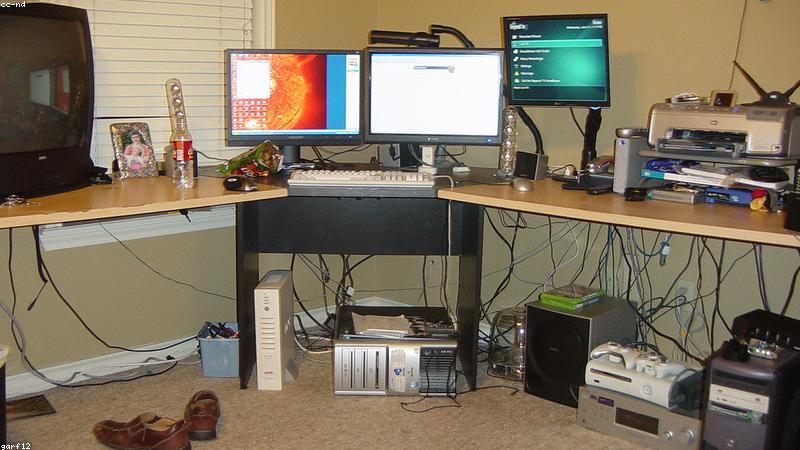
When expanding screen real estate, you generally have two paths: a dual-monitor setup or a single ultrawide monitor. Ultrawide monitors (typically 34 inches or larger, with a 21:9 aspect ratio) have gained massive popularity among remote workers. They eliminate the physical bezel right in the middle of your vision and allow for seamless window management. Dual monitors, on the other hand, provide physical separation, which some users prefer for dedicating specific screens to specific tasks (e.g., communication on the left screen, deep work on the right).
| Setup Type | Best For | Pros | Cons |
|---|---|---|---|
| Single Ultrawide (34″+) | Video editing, massive spreadsheets, seamless multi-window management | No center bezel, requires only one power/display cable, immersive | Screen sharing full desktop on Zoom can distort for viewers |
| Dual Monitors (2x 27″) | Developers, researchers, users who like strict application separation | Easy to screen share just one monitor, massive total pixel count | Bezel gap in the middle, more cable clutter, takes up more desk depth |
Regardless of the configuration, prioritize monitors with USB-C connectivity. A USB-C monitor acts as a hub, providing display input, data transfer, and laptop charging all through a single cable. This drastically reduces desk clutter and makes docking and undocking a breeze.
🛒 34 inch ultrawide curved monitor usb-c hub mac compatible
View on Amazon →
As an Amazon Associate, we earn from qualifying purchases.
4. Crystal Clear Communication: Audio and Video Gear
In a remote startup, your audio and video quality is your virtual handshake. Whether you are pitching to venture capitalists, conducting customer discovery interviews, or simply having a daily standup with your team, poor A/V quality reflects poorly on your professionalism. Relying on the built-in microphone and webcam of a laptop is a common rookie mistake.
The Microphone: Audio is King
It is a well-known secret in broadcasting that audiences will forgive poor video quality, but they will immediately tune out if the audio is bad. Built-in laptop microphones pick up keyboard clatter, fan noise, and room echo. For remote teams, a dedicated external microphone is non-negotiable.
There are two main types of USB microphones: condenser and dynamic. Condenser microphones are highly sensitive and sound incredibly rich, but they pick up every background noise (barking dogs, sirens, AC units). Dynamic microphones are much less sensitive and only pick up audio immediately in front of them. For a home office setup—which is rarely acoustically treated—a USB dynamic microphone is vastly superior, as it naturally rejects background noise.
🛒 usb dynamic microphone with noise cancellation for podcasting and zoom
View on Amazon →
As an Amazon Associate, we earn from qualifying purchases.
The Webcam: Look Your Best
Standard laptop webcams are often 720p sensors crammed into tiny bezels, resulting in grainy, low-light-sensitive video. Upgrading to an external 1080p or 4K webcam immediately elevates your visual presence. Look for webcams with larger sensors, as they handle varied lighting conditions much better. For founders who spend 80% of their day on video calls, investing in a DSLR or mirrorless camera setup with a capture card provides an ultra-premium, blurred-background look that commands attention.
5. Input Devices: Keyboards and Mice
Your team physically interacts with their keyboard and mouse for thousands of hours a year. Upgrading these touchpoints can prevent Repetitive Strain Injuries (RSI), carpal tunnel syndrome, and general hand fatigue.
Mechanical vs. Ergonomic Keyboards
The standard chiclet keyboards found on laptops have minimal travel distance, which can cause users to “bottom out” harshly, sending shockwaves into their fingertips. Mechanical keyboards use individual physical switches for every key, providing tactile feedback that improves typing speed and accuracy while reducing fatigue. Alternatively, split ergonomic keyboards allow users to position their hands at shoulder width, opening up the chest and preventing the hunched shoulder posture.
Ergonomic Mice
Standard mice force the forearm into a pronated (twisted) position. Over time, this unnatural angle strains the tendons in the wrist and forearm.
Pros and Cons of Ergonomic Mice:
✅ Keeps the forearm in a neutral, “handshake” position.
✅ Drastically reduces wrist pain and the risk of carpal tunnel.
✅ Often includes customizable macro buttons for productivity shortcuts.
❌ Requires a learning curve (usually a few days to get used to).
❌ Not ideal for high-precision competitive gaming (though perfectly fine for all work tasks).

6. Networking: Building an Unbreakable Connection
All the premium hardware in the world is useless if your internet connection keeps dropping during critical deployments or client calls. While startups cannot control an employee’s ISP (Internet Service Provider), they can guide them on optimizing their local home network.
Mesh Wi-Fi Systems vs. Traditional Routers
Most home internet issues stem from the cheap, default router provided by the ISP, which usually sits in a far corner of the house. For remote workers, upgrading to a modern Mesh Wi-Fi 6 system is a game-changer. Mesh systems use multiple nodes placed around the home to blanket the area in a strong, seamless Wi-Fi signal, eliminating dead zones.
| Feature | Traditional ISP Router | Mesh Wi-Fi 6 System |
|---|---|---|
| Coverage Area | Limited (single point of broadcast) | Expansive (multiple nodes) |
| Device Capacity | Struggles with 10+ smart devices | Handles 50+ devices effortlessly |
| Reliability | High latency through walls | Low latency, automatic routing |
Even better than a mesh network is a hardwired Ethernet connection. Startups should strongly encourage team members to run an Ethernet cable directly from their router to their workstation. A wired connection guarantees maximum bandwidth, zero interference, and the lowest possible latency.
🛒 mesh wifi 6 system 3 pack for large homes remote work
View on Amazon →
As an Amazon Associate, we earn from qualifying purchases.
7. Environment: Lighting and Acoustic Treatments
A professional home office is not just about the hardware on the desk; it is about the environment surrounding it. Proper lighting and acoustics play massive roles in both personal comfort and how an employee is perceived on camera.
Mastering Office Lighting
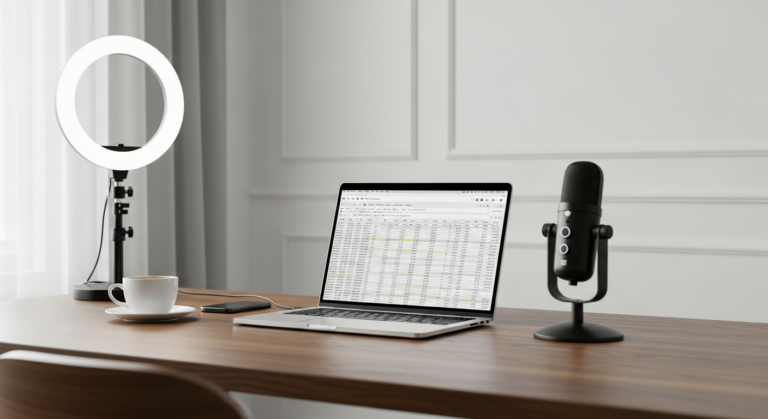
Relying solely on an overhead ceiling light casts harsh shadows over the eyes and face, making workers look tired on camera. The goal is even, diffused lighting. A dedicated LED key light or a high-quality ring light positioned behind the monitor and aimed at the face works wonders. Additionally, implementing “bias lighting”—an LED strip placed on the back of the monitor to illuminate the wall behind it—reduces eye strain caused by staring at a bright screen in a dark room.
Taming Room Acoustics
Modern homes with hardwood floors and minimalist decor are acoustic nightmares, creating echo chambers that make microphones sound hollow. Simple acoustic treatments can drastically improve audio quality. Adding a thick rug under the desk, hanging acoustic foam panels on the wall directly in front of and behind the workspace, or even just adding soft furnishings like curtains and bookshelves will absorb sound reflections.
8. Formulating a Startup Equipment Policy
Knowing what gear is best is only half the battle; deciding how to procure and distribute it is the operational challenge. When structuring a remote work equipment policy, startups typically choose between two models: Company-Provisioned or the Stipend Model.
Company-Provisioned Gear
In this model, the startup purchases the hardware and ships it directly to the employee.
Pros: The company retains ownership of the assets (which can be reclaimed if the employee leaves), and IT departments can standardize hardware and pre-install security software (MDM, VPNs).
Cons: It requires significant logistical overhead to manage shipping, returns, and inventory tracking.
The Equipment Stipend Model
Setting up a remote work equipment stipend allows employees to purchase their own gear up to a certain dollar amount. Industry standard for a remote home office stipend ranges from $500 to $1,500 upon hire, often with an ongoing annual refresh allowance.
Pros: Massive flexibility. Employees can buy the exact ergonomic chair that fits their body type, or a keyboard they already love. Zero inventory management for the startup.
Cons: The company does not own the gear, and standardizing security protocols on BYOD (Bring Your Own Device) setups can be more complex.
9. Frequently Asked Questions
What is the most critical piece of remote work equipment?
Without a doubt, an ergonomic chair is the most critical piece. While a fast laptop is great for productivity, a poor chair will cause physical harm over time. Investing in a chair with excellent lumbar support and adjustable settings pays dividends in employee health and retention.
Should startups pay for employee internet bills?
Many progressive, fully remote startups offer a monthly connectivity stipend (typically $50 to $100) to offset the cost of high-speed internet and cellular data. While not legally required in all jurisdictions, it is a highly appreciated perk that ensures your team can afford the bandwidth necessary for smooth video conferencing.
Can I use a TV as a computer monitor?
While technically possible, it is highly discouraged for daily work. Televisions are designed to be viewed from across a room and generally have lower pixel densities, slower refresh rates, and higher input lag. Sitting two feet away from a 40-inch 1080p TV will cause severe eye strain and make text look incredibly blurry. Always use a dedicated computer monitor for desk work.
How do I secure company data on remote hardware?
Hardware is only as secure as the software running on it. Startups should utilize Mobile Device Management (MDM) software to enforce encryption, require strong passwords, and maintain the ability to remote-wipe devices if they are lost or stolen. Additionally, mandating the use of a business VPN and a company-wide password manager adds critical layers of security for distributed teams.
Conclusion
Transitioning to a remote-first or hybrid model is a fantastic way to scale a startup, offering unparalleled flexibility and access to global talent. However, the physical reality of where and how your employees work cannot be ignored. Upgrading your startup’s baseline remote work equipment directly impacts the quality of your product, the health of your team, and the professional image you project to the world. By investing thoughtfully in ergonomic furniture, capable computing power, and high-fidelity audiovisual gear, you are not just buying office supplies—you are building the fundamental infrastructure for your startup’s long-term success.